Analysis of official documentation, with no testing on a paid account.
In this guide
- Choose a retry based on effects already produced
- Read a history item before changing the workflow
- Fix the cause before clicking Re-execute
- Do not confuse a skipped step with a stopped workflow
- Hypothetical example: a quote created after a form
- Enable automatic retry with a clear limit
- Keep evidence beyond the error email
- Final check after the retry
Documentary review of Pabbly guides and support answers, without running anything in an account or calling a third-party application.
An error does not mean the entire workflow failed. Some actions may have created a contact, row or message before the stop. Open the history, identify successful steps, fix the cause and choose Failed & Skipped Steps when only failed and skipped steps should resume. Retrying the entire workflow first requires proof that earlier actions can be repeated without duplicates.
Choose a retry based on effects already produced
| Finding in the history | Careful action | Check before retrying |
|---|---|---|
| The first actions succeeded and a later action failed | Retry failed and skipped steps. | Check records, rows, files or messages already created. |
| No external action had an effect | A full retry may be considered. | Confirm there is no result in each target application. |
| An independent branch continued | Handle the failed branch separately. | Also check branches marked as successful. |
| The source or mapping was fixed | Retry one representative history item. | Compare the corrected value with the action response. |
Pabbly support distinguishes two retry choices: Entire Workflow retries all steps, while Failed & Skipped Steps limits the retry to failed or skipped steps. This second option reduces the risk of repeating a successful action. You must still check what the target application received.
Read a history item before changing the workflow
- Open History, then Task History, and select the ID of the relevant execution.
- Record the time, trigger data and status of each step.
- Open the response from the first failed step and keep its exact message.
- In each target application, search for the business identifier used by the workflow.
- Classify steps into three groups: confirmed effect, confirmed absence of effect, and result still uncertain.
A step marked successful in Pabbly confirms a response received by the connector. For a sale, invoice or customer message, also check the result in the target tool. A successful technical response alone does not prove that the business record is correct.
Fix the cause before clicking Re-execute
Start with the message from the failed step. Fix a missing required value in the source or mapping. An expired connection requires reconnection. A limit or outage in the target application requires waiting or adapting the process according to that service’s official response.
Save the change, then use one failed execution as a control case. A bulk retry before this test can turn one error into a series of duplicates. If the fix changes the meaning of the data, also compare the step’s input and output values.
Do not confuse a skipped step with a stopped workflow
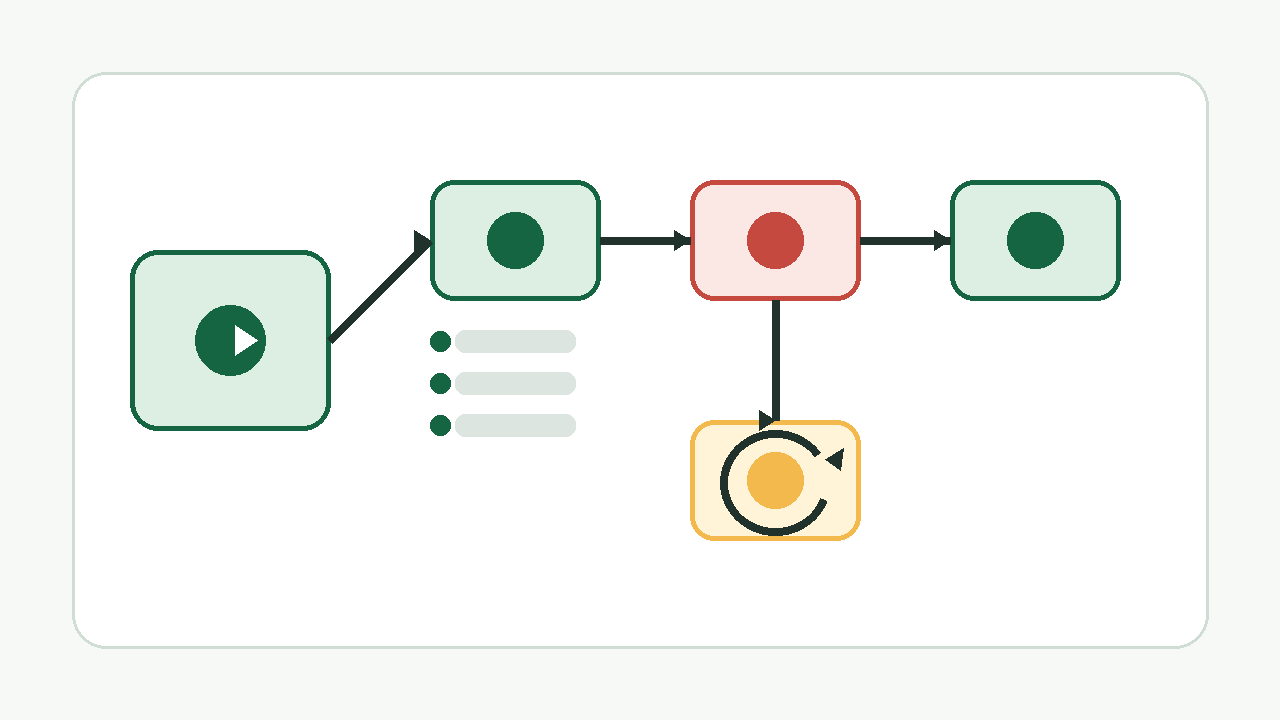
Pabbly support states that steps depending on a failed action do not run, while an independent branch may continue. The history can therefore contain an error, skipped steps and other successful actions at the same time.
Review each branch before retrying. If an internal notification was already sent on an independent branch, repeating it may be unnecessary. If a customer action depended on the failed step, it may instead belong to the steps to retry.
Hypothetical example: a quote created after a form
A small agency uses a form that creates a contact in its CRM, prepares a quote in its invoicing tool and then notifies the person responsible for the case. The contact is created, but the quote fails because a product code is missing. The notification depends on the quote and remains skipped.
The agency first checks that only one contact exists in the CRM. It adds the product code to the source, then chooses to retry failed and skipped steps for the relevant execution. It then checks the quote number and notification. Retrying the entire workflow could have created a second contact. This example explains a method; no execution was carried out in Pabbly Connect.
Enable automatic retry with a clear limit
Pabbly documents an automatic retry setting for failed tasks, with a configurable number of attempts. Use it for transient errors where repeating the action remains acceptable. Invalid data, withdrawn authorisation or a reached quota often requires a fix before another attempt.
Before enabling it, ask for each action: does it have a unique key, replace existing data, or create a new object on every call? If the answer is unknown, keep manual retry until a control case demonstrates the behaviour.
Keep evidence beyond the error email
A Pabbly support response dated August 2026 states that task history is retained for fifteen days and failure emails are limited to one message per workflow per day. One email can therefore hide several errors and is not a durable log.
For an important workflow, keep the history ID, time, business identifier, failed step, fix and retry result in the company’s internal tracking. Do not copy secrets or unnecessary personal data. This record helps distinguish a one-off fix from a recurring workflow defect.
Final check after the retry
- Retried steps are now successful or their new error is documented.
- Each target application contains the correct number of contacts, documents or messages.
- Independent branches already executed did not produce an unwanted effect.
- The business identifier links the source, Pabbly history and final result.
- The cause and fix are precise enough to handle the next similar case.
The right decision depends on effects already produced, not only the status colour. Start with one execution, check the destinations, then extend the retry to other affected history items.
Limits of this method
The labels and behaviours cited are those documented by Pabbly on 2 November 2026. Connected applications retain their own duplicate, delay and quota rules. Ignore Error can allow the workflow to continue, but this choice does not turn a missing action into a valid result. For a payment, invoice or regulated message, add human validation suited to the risk before any bulk retry.
Sources and method of this analysis
Pabbly Connect: track errors and retry failed steps ; Pabbly Connect: understand branches after an error ; Pabbly Connect: diagnose and retry from history ; Pabbly Connect: configure automatic retry and skipped steps Retry choices, branches after an error, history retention and automatic retry are combined in a control method before restarting. Sources reviewed on 2 November 2026. Methodology · Trade transparency · Report correction.