Analysis of official documentation, with no testing on a paid account.
In this guide
Choose full access to open the whole course, partial access to limit the modules, and drip content to set a pace. Partial access can also be combined with drip content. Before selling, calculate the unlock dates and check the expiry shown in your offer.
Method: review of the official Systeme.io help pages consulted on 4 November 2026 and Logicelio calculations based on illustrative examples, without testing an account.
Choose the access type that matches the offer
| Access type | What the student receives | Suitable use case | Point to check |
|---|---|---|---|
| Full | All active chapters immediately | Library, short course or self-paced reference | Content visible from the first day and access duration |
| Partial | Only the selected modules | Entry-level offer or role-specific path | Exact list of included modules |
| Drip content | Chapters unlock according to their delays | Progressive support or a weekly pace | Sum of the delays and date of the final unlock |
| Partial access with drip content | Selected modules, opened progressively | Several offer levels within one course | Included modules, shared delays and upgrade path |
On a checkout page, Systeme.io requires you to add a digital product, then the “My courses” resource. The access type is set on this resource. The official help page states that full access ignores delays between chapters, so a progressive schedule requires one of the two drip modes.
Partial access is not a substitute for a separate course when the content, progression or support differ substantially. Its main purpose is to select modules from the same structure. List the promised modules in the offer so the student can compare what they bought with what appears in their account.
Calculate a drip schedule before selling
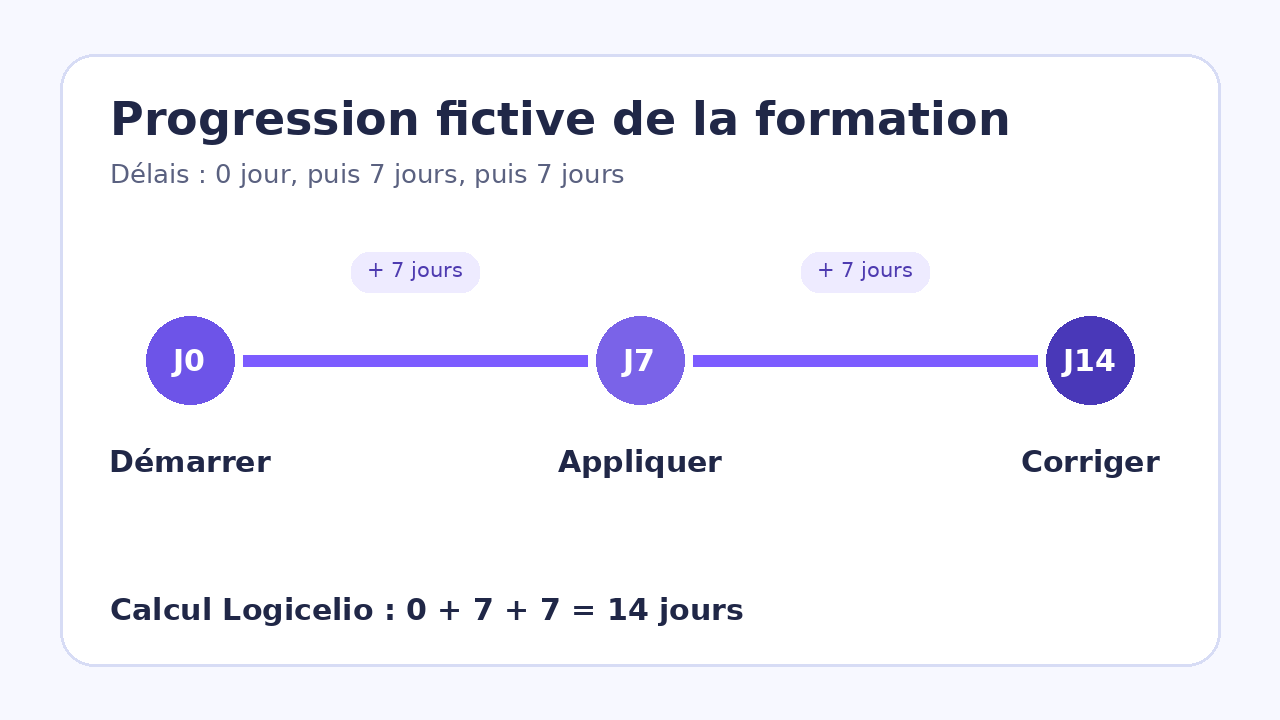
Illustrative example: a course has three chapters. The first has a delay of 0 days, the second 7 days after the previous one, and the third another 7 days later. A student enrolled on J0 therefore receives chapter 1 on J0, chapter 2 on J7 and chapter 3 on J14. The delay is cumulative: 0 + 7 + 7 = 14 days to the final chapter.
| Chapter | Delay after the previous chapter | Cumulative unlock |
|---|---|---|
| 1. Start | 0 days | J0 |
| 2. Apply | 7 days | J7 |
| 3. Correct | 7 days | J14 |
The documentation states that a change made before a chapter unlocks recalculates the wait using the new delay. If, on J10, you change the third chapter delay to 14 days after the second, its unlock moves from J14 to J21. The remaining wait is then 11 days instead of 4 under the original schedule. A change during a session can therefore alter a date the student was already expecting.
Keep a dated record of the schedule sold and notify affected students before changing a future delay. For a cohort that must follow the original plan, duplicating or freezing the offer may be clearer than modifying a resource that has already been assigned.
Separate the start date from expiry
You can set a specific unlock date on the resource added to the checkout page. The help page states that access starts at 00:00 in the account time zone. The student may receive the access email after payment while the content remains locked until that date. The sales message must distinguish account creation from the actual start of the course.
Illustrative full-access example: an unlock on 1 December 2026 with a 30-day expiry provides access from 1 December at 00:00 to 30 December at 23:59 in the account time zone. This calculation follows the official example of 30 full days. It does not describe a subscription and must not be combined with our drip schedule.
The official documentation is inconsistent about the scope of expiry. The access-type page and the sales procedure state that expiry works only with full access. The page about the start date says that an expiry period can be set for full or partial access and excludes drip content. This difference was still present when we reviewed the pages on 4 November 2026.
Check the field displayed on the resource in your own checkout page before promising a duration, then keep a dated internal screenshot of the setting. If a partial offer does not display this field, do not promise automatic cut-off. The help pages consulted do not support using this expiry with drip content.
Activate the chapters and review the offer
Each new chapter is created as a draft. Under Resources and then Courses, use “Activate” to publish it. The “No content yet” message means that the module chapters are still inactive. A correctly configured access type does not make a draft chapter visible.
- List the modules included in the offer and activate only completed chapters.
- Calculate the cumulative unlock day for every drip chapter.
- Add the course as a digital-product resource, then select the access type that matches the promise.
- If you use a specific date, check the account time zone and the date stated on the page.
- Check the expiry field available for this access type and record the rule chosen.
- Review the offer, the access email and the visible content using the same module names.
The sales page should state a clear outcome and pace, not merely “course access”. In our example, “three chapters open on J0, J7 and J14” helps the customer decide. If you expect frequent corrections or permanent access to a library, full access avoids turning every change into a new schedule.
Distinguish access removal from the end of payment
To remove a course manually, the help page instructs you to open Resources, Courses, then the Students tab and the person’s record. The “Cancel” action removes course access but keeps the contact and their enrolment in the database. Deleting the contact serves a different purpose.
An active subscription follows another rule: cancellation takes effect just before the next renewal and then removes the resource linked to the plan. This cancellation procedure does not apply to offers paid in instalments. Before promising a duration tied to payment, distinguish fixed expiry, manual removal, a recurring subscription and an instalment schedule.
Systeme.io is suitable if you want to combine the checkout page, member access and progression in one tool. For certification, complex assessments, mandatory attendance or rights managed by several organisations, assess a specialist LMS: the four access types described here do not cover those requirements.
Partner link
Sources and method of this analysis
Systeme.io: compare the four course access types ; Systeme.io: sell a course and configure access ; Systeme.io: set a start date and expiry period ; Systeme.io: publish chapters that remain in draft ; Systeme.io: cancel a student’s access ; Systeme.io: cancel a subscription and distinguish instalment payments Desk research using Systeme.io help pages and illustrative examples calculated by Logicelio. No real account, payment, student or course was used. Sources consulted on 4 November 2026. Methodology · Trade transparency · Report correction.