Analysis of official documentation, with no testing on a paid account.
In this guide
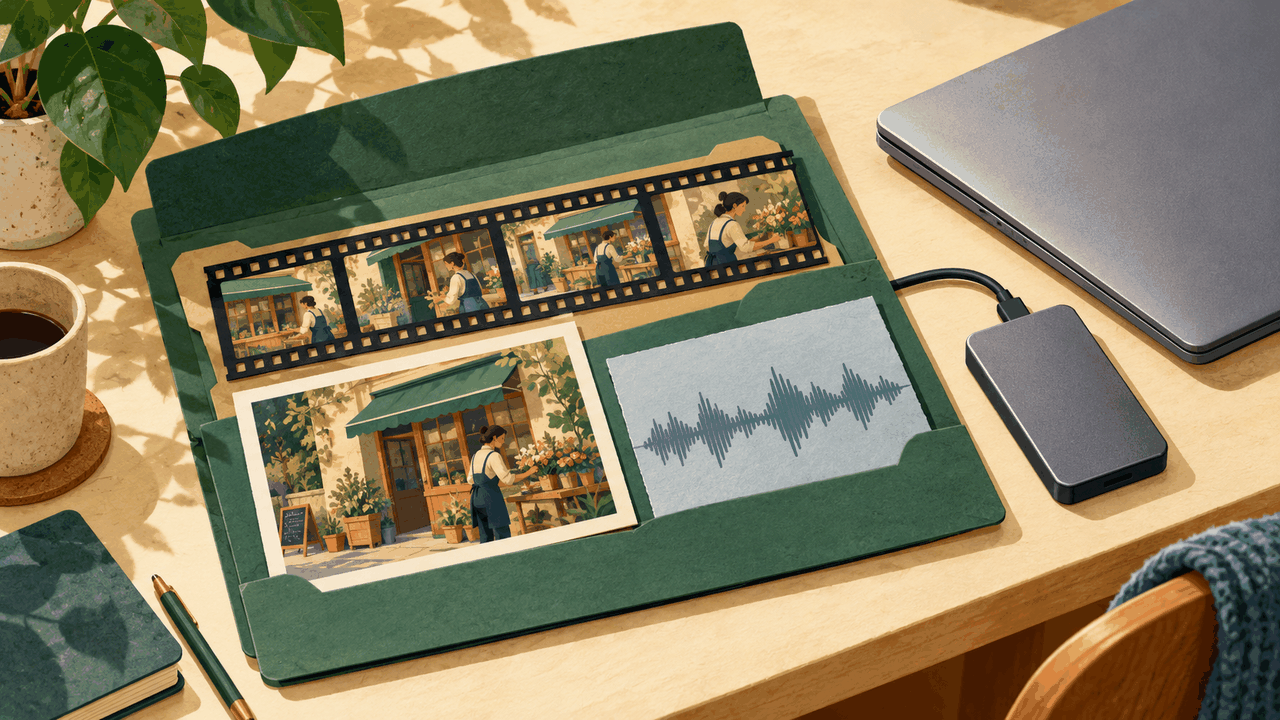
To resume editing Filmora on another computer, use "Archive Project", and then transfer the entire folder. Also attach the videos, images and sounds used: the file .wfp remembers their location on the first computer. Keep the originals until the copy has been opened and checked on the destination computer.
This guide concerns Filmora on computer, for an independent person who changes machine or transmits a montage to a colleague. Official Documentation Consulted with 17 October 2026.
The project, the media and the final video have three different roles
The guide to creating a project states that .wfp keeps the settings and editing decisions, but not the source files. It records their names and locations. Renaming a video or disconnecting the drive that contains it can therefore break this reference, even if the project is still present.
| Need | Elements to be retained or transmitted |
|---|---|
| Watch or publish the finished video | The video exported, for example in MP4. |
| Change title, cut or music | The Filmora project and its media, gathered by archiving. |
| Validate the loyalty of a takeover | The archive to work, plus export validated to compare the result. |
Keep two deliverables: the export as a visual and audio reference, and the project folder for further editing. Before an engagement, also specify whether delivery includes only the final video or the elements needed to edit it. These are two different deliverables.
Create archive on computer that owns media
- Open the right project and make sure he's already finding his media. If an external disk contains them, reconnect it before you start. An archive should not be used to hide missing files.
- Record your work. In the menu File, choose Archive Project. The guide Windows indicates shortcut Ctrl + Shift + A The Mac indicates Shift + Command + A.
- Choose a separate location from the work folder. The guide Windows in English describes the selection of a local folder or external disk, then the recording.
- Wait for the end of the operation and transfer the obtained set, without extracting only the
.wfp. The Transfer FAQ asks to move the file that brings together project and sources.
The guides sometimes use the expression “archived .wfp file”, while the FAQ refers to a shared folder. Do not decide what is sufficient from the extension alone: keep everything the operation created. Any additional files you want to deliver that are not used in the edit still need to be collected separately.
Check an independent copy
The FAQ recommends using the same Filmora version on both computers. Record the version on the original computer before transferring. Check compatibility of the operating system, version, fonts and effects separately on the receiving computer. If these elements change, keep the original computer available until the result is approved.
Logicelio’s suggested check: copy the archive to the destination computer, open the project from that copy and make sure it cannot access the former working locations. If the archive is copied to the local drive, safely disconnect the old media drive before this check. Do not disconnect the drive containing the archive currently being read.
Then browse through the passages that use each type of resource: a video shoot, a photo, music, voice and titles. Compare with validated export, including cuts, sound and presentation of texts. Also make a short export control. The opening of the project is the first check; comparison of images and sound validates the delivery.
Consider this case: a store receives a promotional video and wants to change its opening hours the following month. The MP4 is enough to publish it today, but not to edit the title properly in the timeline. The archive preserves the edit; the approved MP4 lets you spot a difference when reopening the project. If the music is missing during the check, the handover is incomplete: retrieve the original file before deleting the old folder.
If Filmora reports missing file
The Windows media documentation not found describes a missing file window and command Locate selection. It allows to designate their new location. For a media stored on a disconnected disk, start by reconnecting that disk; for a moved file, look for the original at the new location.
Choose the file corresponding to the expected clip, not another plan with a close name. Read the passage after reconnexion. The Ignorer option allows you to continue with a red warning: it does not recover the media. The Delete option removes the clip; it does not repair its path.
If the original has been permanently deleted and no copy exists, pointing to a new path does not recreate it. The documentation then suggests replacing it with another file. Rework and approve that section as a change, rather than presenting the edit as restored exactly as before.
What the archive doesn't fix
Moving files does not activate a licence on the receiving computer. Theactivation aid states that an export carries a watermark without an account linked to a paid licence. Before delivering a version without a watermark, check activation on the computer that will export it. The guides consulted do not state a plan requirement for archiving itself.
The FAQ from the French shop distinguishes Advanced and Premium subscriptions, which can be used on Windows and Mac, from Perpetual linked to the purchased system. She presents Advanced and Premium as single-user licenses: passing a folder to a colleague does not give her your right to use. Check your own license rather than send your account. No price is required to make the copy described here.
Archive sources do not detail the transfer of all fonts, extensions or resource authorizations. Keep the information required for these items separately; a technical copy should not be presented as a new authorization for use. Do not pass on your password to make the project work with someone else.
Finally, the archive remains linked to Filmora. To deliver to someone who uses another software, first agree on the expected format: this guide does not demonstrate the portability of one timeline to another vendor. For a simple customer validation, video export can be enough. For a durable backup, also keep a second copy on another medium; our guide for preparing a recovery helps distinguish copy and recovery control.
Find the commercial conditions on the Filmora review and other ways to work the video in the comparative Descript and VEED. Changing the tool to collaborate does not exempt from checking what the recipient can change.
Partner link
Sources and method of this analysis
Filmora: Creating a project and understanding media references ; Filmora: Archive a project under Windows ; Filmora: Archive a project under Mac ; Filmora: Choose destination folder, guide Windows in English ; Filmora : Transfer folder and keep the same version ; Filmora: Locate missing media under Windows ; Filmora: Activate Filmora and understand watermark ; Filmora: Windows/Mac licenses and single-user use Check version, font and extension compatibility on the receiving computer. Sources consulted on 17 October 2026. Methodology · Trade transparency · Report correction.