Analysis of official documentation, with no testing on a paid account.
In this guide
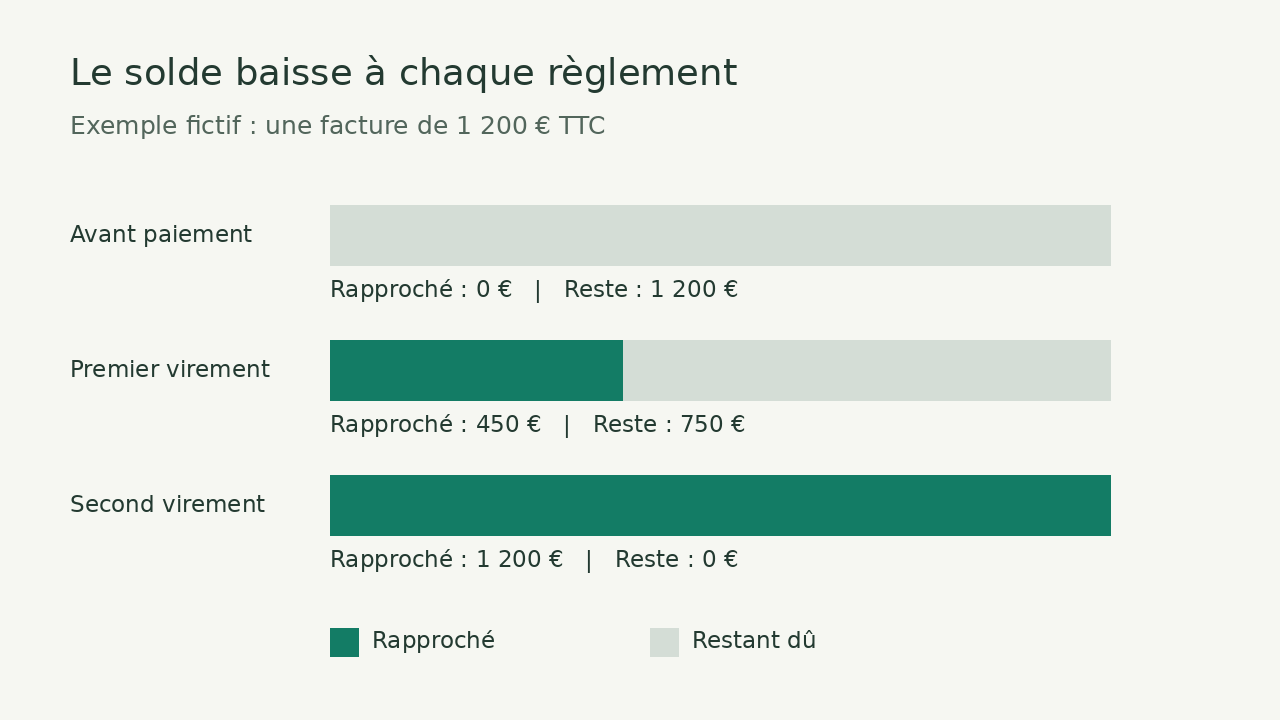
A matched payment does not necessarily mean an invoice has been settled. In Pennylane, associate the receipts that belong to the document, then check the outstanding balance. On an invoice of €1,200 including VAT, an initial payment of €450 leaves €750 to collect: the invoice must not be treated as fully paid.
One invoice, two receipts: track the balance
Illustrative example: a small business has issued a single invoice for €1,200 including VAT. The customer makes two bank transfers, first €450 and then €750. Both receipts are available in the bank account, with no deducted fees, refund or other invoice to allocate. The amounts below explain the tracking process; no real payment was matched for this guide.
| Stage | Total matched receipts | Outstanding balance |
|---|---|---|
| Before matching | 0 € | 1 200 € |
| After the first transfer | 450 € | 750 € |
| After both transfers | 1 200 € | 0 € |
The check is straightforward: 1,200 − 450 = €750, then 1,200 − (450 + 750) = €0. Compare the receipts with the invoice’s VAT-inclusive total on the same basis. The invoice remains a single document; matching does not issue a new invoice for every transfer.
Pennylane’s help centre states that after a partial payment, the invoice remains in an outstanding status. It moves to a paid status when matched receipts cover the full amount and the outstanding balance reaches zero. The figure to check is therefore the balance, not merely the presence of an associated transaction.
Match receipts from the invoice
The invoice must be present in the workspace and transactions must come through from the connected bank account. If the document is missing, start with our invoice collection guide rather than creating a second document to represent the same payment.
- In the French interface described by the help centre, open the sales area, select customer invoices and open the relevant invoice. On its payment line, use the magnifying glass to search for a transaction.
- Filter by date, description or amount. Compare the reference, customer and amount with the transfers actually received; a Pennylane suggestion remains a proposal to verify.
- Select the corresponding receipt or receipts, then confirm the match. In our example, matching only €450 must leave €750 outstanding; after matching the second transfer of €750, the balance must be zero.
If both transfers have already been received, the help centre allows several transactions to be selected for one invoice. If one is still missing, do not mark the invoice as paid simply to remove the alert. First locate the receipt in the bank account and transaction search. A planned payment date is not a receipt.
One transfer to allocate across two invoices
The reverse operation has an important limitation: multiple matching in the management interface does not allow a transfer amount to be freely allocated across several invoices. The customer invoice help article assigns that allocation to the accounting module and a user with the necessary access.
Another illustrative example: invoices A and B total €1,200 and €800 including VAT respectively. The customer transfers €1,000 and specifies that €700 relates to A and €300 to B. This allocation detail is the information to have processed, alongside the references of both invoices and the transaction.
| Invoice | Total incl. VAT | Allocated receipt | Outstanding balance |
|---|---|---|---|
| A | 1 200 € | 700 € | 500 € |
| B | 800 € | 300 € | 500 € |
The allocations correctly total 700 + 300 = €1,000. A further 500 + 500 = €1,000 remains to collect from the initial total of €2,000. Selecting two invoices is not a substitute for allocating the amounts. Give the detail to the accountant; do not force both documents into a paid status.
Access rights and exceptions
The help centre permits matching for the owner/admin, in-house accountant or finance manager, billing manager, and accountant roles. A billing manager can search for a receipt from an invoice without access to the transactions module. Be careful when granting access: the help centre states that this search window also shows bank balances to those managers, with no option to hide them.
The owner role is not sufficient by default for accounting allocation. On the business side, Accounting module access requires the Comptable interne role with a Premium subscription and in-house accounting; your accounting firm can also act if it uses Pennylane. First establish who already has that access before considering a plan change.
Do not confuse this tracking with issuing a deposit invoice or partial invoice. The official plan comparison for independent businesses consulted lists those documents under Basique. Our procedure concerns receipts against an existing invoice, not the creation of new commercial documents.
One final exception: after a direct debit is rejected, an invoice may still appear collected because the original accounting matching remains. The help centre then calls for that matching to be checked in the accounting module. Removing a bank association does not, by itself, correct all the related accounting entries.
Partner link
Sources and method of this analysis
Pennylane: partial payments, balances and allocation limits in the management interface ; Pennylane: find and associate transactions with an invoice ; Pennylane: roles, accounting access and visible balances ; Pennylane: features and access by plan Desk research using Pennylane’s help centre and illustrative examples worked through by Logicelio. No accounting workspace or real matching operation was used. Sources consulted on 3 November 2026. Methodology · Trade transparency · Report correction.