Analysis of official documentation, with no testing on a paid account.
In this guide
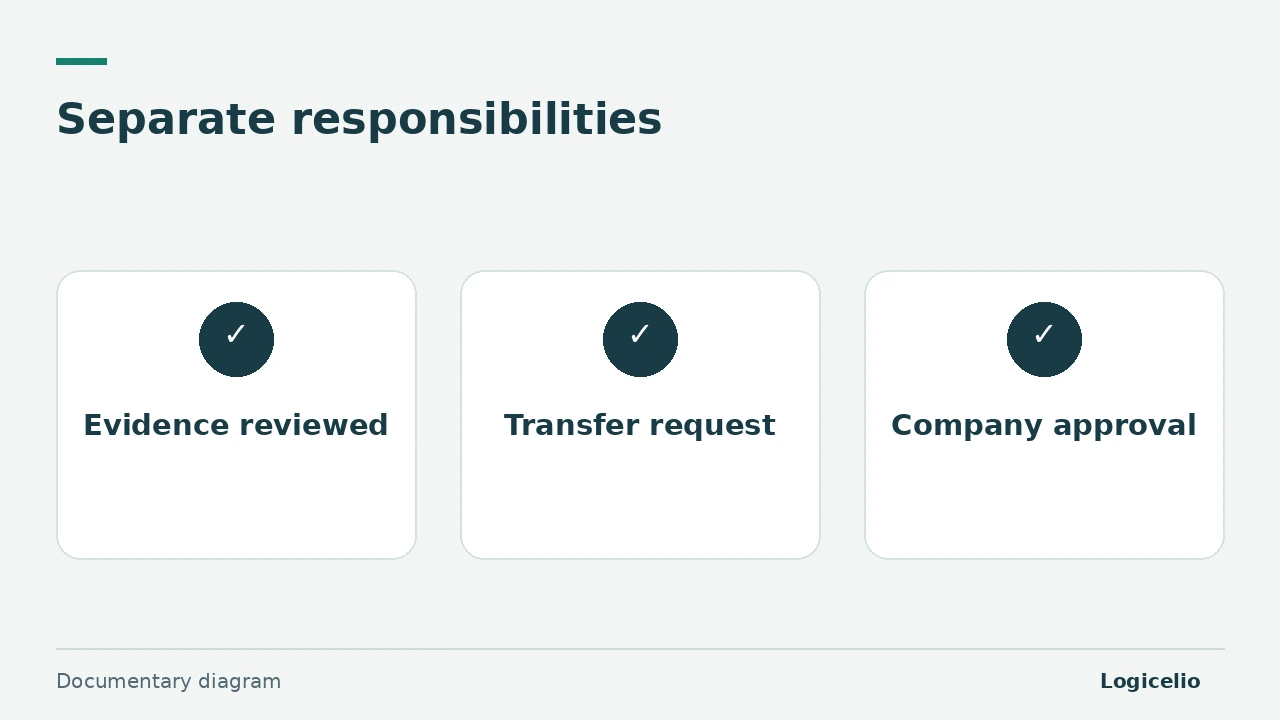
Give the firm the permissions needed for bookkeeping, then identify separately who authorises outgoing funds. Viewing an invoice, approving it for payment, preparing a transfer and authorising that transfer are different actions.
Method. Qonto help reviewed on 7 November 2026, with a proposed workflow for a small business. No account, role, beneficiary or transfer was created.
Define what the accountant needs to do
Qonto makes the Accountant role available from the Smart plan. It provides access to financial information, invoices, supporting documents, reconciliation and exports while excluding team and account administration.
This role can also add or change supplier bank details. This permission helps accounting preparation, but requires an internal check when a supplier announces a new IBAN: confirm the change through a previously established channel before any payment.
If the firm only needs to review transactions, collect documents and prepare exports, the Accountant role covers that need without granting an Admin role. Managing the team, cards or account settings requires a different role to be assessed separately.
Separate preparation from authorisation
By default, an Accountant user can neither make nor approve a transfer. On Business and Enterprise plans, they can submit a transfer request. Qonto states that an Admin or Account Holder with the necessary permissions must then review and approve it.
This separation lets the firm prepare payment without deciding alone that funds should leave the account. It does not replace the operational check: the approver must still confirm that the service or delivery matches the invoice.
Process a €680 supplier invoice
Illustrative case: a €680 invoice including VAT arrives after maintenance work. The following workflow assigns evidence and an owner to each stage.
| Stage | Suggested owner | Expected check |
|---|---|---|
| 1. Collect the invoice | Accountant | Supplier, date, amount and legible document |
| 2. Confirm the service | Operational owner | Service completed and no dispute |
| 3. Prepare payment | Accountant, if the plan permits | Beneficiary, IBAN and €680 amount |
| 4. Authorise the transfer | Authorised Admin or Account Holder | Document, operational approval and confirmed details |
| 5. Check execution | Assigned person | Transfer status and invoice reconciliation |
If the IBAN has changed, pause approval until independent confirmation. A consistent document and a prepared request do not by themselves prove that the new details came from the supplier.
Review access at the right time
Give each person at the firm an individual account. When a staff member changes or the engagement ends, remove their access and check any open transfer requests and recently changed beneficiaries.
Also review access whenever the plan or accounting scope changes: transfer requests for the Accountant role depend on the Business or Enterprise plan. The Qonto supporting-document guide complements this workflow before export, while the Qonto review places these permissions in the context of choosing a business account.
Partner link
Sources and method of this analysis
Qonto: Accountant role permissions ; Qonto: available roles and permissions Documentary review of two official Qonto pages and an illustrative €680 Logicelio case. No real account, role, beneficiary or transfer was used. Sources reviewed on 7 November 2026. Methodology · Trade transparency · Report correction.