Analysis of official documentation, with no testing on a paid account.
In this guide
- Classify the database before making changes in Brevo
- Create two files and preserve opt-outs
- Prepare the attributes before importing
- Import the opt-out file with the correct channel
- Import active contacts into a working list
- A hypothetical example for a small French shop
- Check the migrated data before the first campaign
Analysis based on official Brevo and CNIL documentation, without testing in a paid account.
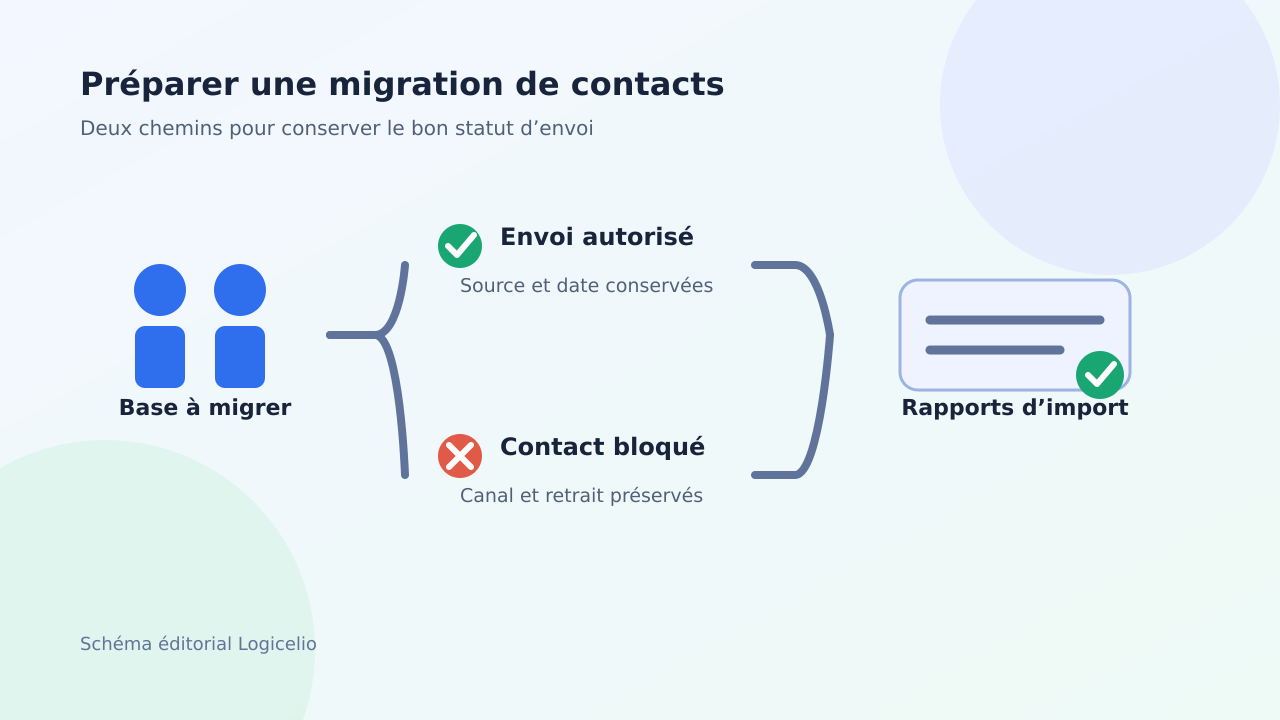
The method uses two imports. Eligible contacts go into a working list. Unsubscribers and blocked addresses go into a separate file, imported with the relevant blocked status. This retains the history instead of accidentally restoring access to campaigns.
Classify the database before making changes in Brevo
Start with the type of message you intend to send. An order confirmation is part of the service the customer expects. A newsletter or commercial offer is subject to direct marketing rules. For consumers, the CNIL sets consent as the general rule, with an exception for existing customers where the offer concerns similar products or services. Each marketing message must also provide an easy way to opt out.
Add a decision column to your preparation file. Use clear values: campagne autorisée, bloqué email or à vérifier. An unknown status stays out of the mailing list until its supporting records have been reviewed.
Create two files and preserve opt-outs
Brevo documents a dedicated import process for blocklisted contacts. Prepare a file for each channel if your previous application distinguishes email, SMS and WhatsApp. This avoids turning a newsletter opt-out into a block on every type of communication.
| Status in the previous application | Destination | Record to retain |
|---|---|---|
| Confirmed subscription or eligible existing customer | Standard import into a working list | Source, date and rule applied |
| Unsubscribe, complaint or email block | Separate import with email blocklisted status | Available date and reason |
| Unknown origin, purchased file or address collected from the web | Review area, excluded from campaigns | Establish the source or delete the record |
Prepare the attributes before importing
Create the attributes you need before uploading the main file. For example: SOURCE_ACCORD, DATE_ACCORD and TYPE_MESSAGE. These are working names suggested by Logicelio. Adapt them to your internal records.
Brevo states that a custom attribute's name and type cannot be changed after creation. Choose the date format and expected values before mapping the columns. Deleting an attribute also deletes the data it contains.
Import the opt-out file with the correct channel
During the import, map the columns and choose a list dedicated to opt-outs. Before confirming, enable the option that adds contacts to the email, SMS or WhatsApp blocklist. The choice applies to every row in the file: use separate files when the channels differ. Once processing is complete, check the blocklisted column and the report.
Import active contacts into a working list
- Keep at least one identifier per row, such as an email address or phone number.
- Start with a small, representative sample and check the data preview.
- Map each column to the correct attribute, then choose a list created for this migration.
- Read the import report. Brevo identifies added, updated and rejected rows.
Brevo automatically removes duplicates from the file. The field CONTACT_ID is used to update contacts already present in the account. For an initial migration from another application, an email address or phone number remains the practical identifier.
A hypothetical example for a small French shop
A shop prepares three rows before migrating. The first comes from a newsletter form confirmed in August 2026: it joins the working list with its source and date. The second is a customer who opted out of email offers in September: it goes into the blocklisted import. The third comes from an old address book with an unknown source: it stays in the review area.
This classification gives each row a clear outcome. The team knows which contact to import, which opt-out to preserve and which record to review before running any campaign.
Check the migrated data before the first campaign
Compare the Brevo report with the totals in your two files. Open a few contact records from each group. Check the list, supporting attributes and blocklisted status for the relevant channel. Finally, retain the dated files and import reports with the migration records.
For new subscriptions, the guide to Brevo double opt-in helps you retain evidence from the form onwards. The guide to inactive contacts then helps you clean the list before a campaign. The Brevo review puts these features in the context of choosing the application.
Sources and method of this analysis
Brevo: import contacts and read the report ; Brevo: import a list of blocklisted contacts ; Brevo: build a legitimate contact database ; Brevo: create and manage custom attributes ; CNIL: rules for electronic communications Scope: preparing and importing a Brevo database while preserving opt-outs and available supporting records. Sources consulted on 31 October 2026. Methodology · Trade transparency · Report correction.