Analysis of official documentation, with no testing on a paid account.
In this guide
- An exit stops the sequence; a branch selects a path
- Start with the achieved objective
- Worked example: stop two reminders after payment
- Configure the exit without inventing an event
- Verify the signal before activating the sequence
- Plan for the manual exception
- Separate exit, restart and re-entry
- Final check before activation
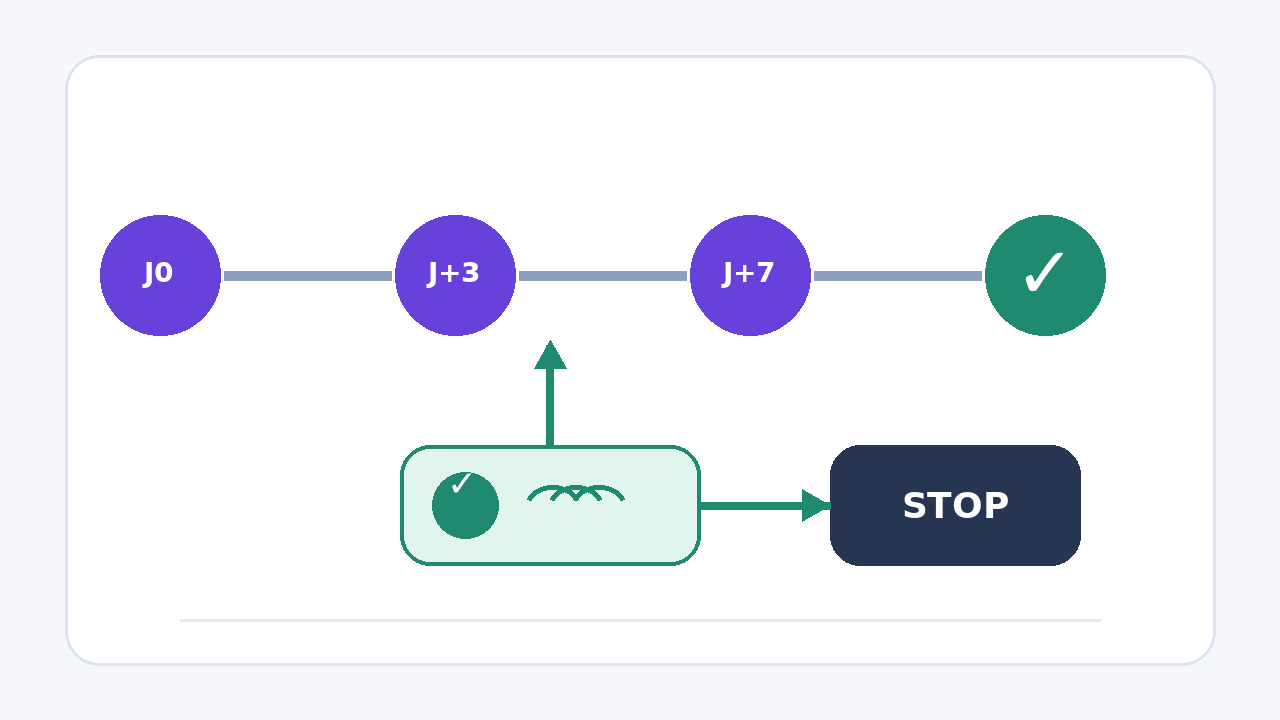
In Brevo, add an exit condition based on the event that makes subsequent messages unnecessary. A purchase, payment or reply should stop the sequence immediately, even while the contact is still waiting for the next step. A conditional branch alone does not guarantee that stop.
Documentary review of official Brevo help pages, without signing in to an account, sending an event, activating an automation or dispatching a message.
An exit stops the sequence; a branch selects a path
Brevo describes an automation as a series of triggers, actions and rules. A conditional branch distributes contacts among several paths at the point where it is placed. The audience exit condition answers a different question: which event should remove the contact from the entire automation, regardless of the current step?
This setting prevents, for example, following up with a customer who has just paid or continuing a sales sequence after a reply. If several exit conditions are configured, Brevo states that meeting any one of them is enough to remove the contact.
Start with the achieved objective
First write the sentence that makes the next message unnecessary. ‘The invoice has been paid’, ‘the order has been placed’ and ‘the prospect has replied’ are observable outcomes. ‘The contact seems interested’ does not define a usable signal.
| Sequence | Objective achieved | Possible signal | Point to check |
|---|---|---|---|
| Payment reminder | Payment received | Payment event | The payment is correctly associated with the right contact and invoice. |
| Abandoned cart | Order created | Purchase event | The store actually sends the event to Brevo. |
| Sales sequence | Reply received | Available reply event | The monitored channel covers the one used by the prospect. |
| Onboarding | Step completed | Custom event | The application sends the event after an actual success. |
Brevo documentation specifically cites a purchase or an emptied cart for an abandoned-cart scenario, and a reply in a sales sequence. The right signal still depends on your system and the events actually received.
Worked example: stop two reminders after payment
Hypothetical example: a small business plans a first reminder three days after the due date and a second one seven days after it. Its invoicing software sends Brevo a custom event named payment_received when the payment is matched.
- The contact enters the automation when the invoice reaches its due date without a recorded payment.
- The automation waits three days, then sends the first reminder.
- It then waits four days before the second reminder.
- The exit condition monitors
payment_receivedthroughout the sequence.
If payment is received on day two, no reminder is sent. If it arrives on day five, the first reminder has already been sent, but the second is cancelled. If the event never reaches Brevo, the rule cannot infer the payment: the second reminder continues along the planned path.
Configure the exit without inventing an event
- Open the automation settings and the audience section.
- Add an exit condition and choose the event that proves the objective has been achieved.
- Add a filter only if it reliably distinguishes the relevant record, such as an invoice reference or order type.
- Add another exit condition only if it represents another valid reason to stop the entire sequence.
- Review the re-entry-after-exit setting separately. A correct exit does not necessarily prevent a later re-entry.
In the new editor, Brevo places these settings in the audience parameters. The comparison of the two editors shows that the old editor used scenario exit and restart labels. All users can access the new editor, but some specific steps may depend on the plan.
Verify the signal before activating the sequence
Brevo distinguishes system, e-commerce and custom events. Custom events must be implemented with the tracker, API or webhooks. Naming an event in the plan therefore creates no connection.
Before activation, use an internal contact and a record with no commercial stakes. Make the source system produce the signal, then check its name, time and the properties required for the filter in Brevo’s event data. Next, verify that the contact leaves the automation during a wait. Keep this test internal: it requires neither an affiliate click nor a message to a customer.
If the signal is unavailable, do not replace its evidence with an email open or an arbitrary delay. Document the manual procedure or implement the event before entrusting the decision to the automation.
Plan for the manual exception
The contact detail page shows its active automations and lets you remove it from an automation. This can provide a temporary fix when a payment or reply was not transmitted, but it does not correct the source of the error.
Record the case, the reason for removal and the missing signal. If several people handle reminders, assign the integration fix before reactivating the path. Repeated manual removals indicate that the exit condition or event collection needs review.
Separate exit, restart and re-entry
An exit condition ends the current run. A restart condition sends the contact back to the beginning as soon as a defined event occurs. The re-entry option allows a contact who has left to enter again when the trigger occurs again, possibly after a waiting period.
For an invoice reminder, a new unpaid invoice can justify a new entry. Payment of the previous invoice should not restart the same path. Use a record reference when the event allows it, and verify that re-entry corresponds to a new need rather than a repetition of the previous one.
Final check before activation
- Is the achieved objective described by a specific event rather than an impression?
- Does this event actually appear in Brevo with the right contact and expected properties?
- Does the exit condition apply during every delay in which a message could become unnecessary?
- Are multiple exits used as valid alternatives, since any one of them is sufficient?
- Have re-entry and restart been reviewed separately?
- Is there a manual procedure if the integration stops sending the signal?
Limits of this method
This guide does not replace designing the integration that sends events. It guarantees neither message deliverability nor the legal validity of their content. Sensitive payment data should not be copied unnecessarily into a marketing event; send only the properties required for the decision.
To prepare the audience, see the method for migrating unsubscribed contacts and the guide to inactive contacts. The Brevo double opt-in addresses subscription evidence, while the Brevo review places automation within the overall software choice.
Sources and method of this analysis
Brevo: manage entry and exit conditions ; Brevo: understand events ; Brevo: compare the new and classic editors ; Brevo: view a contact’s automations Exit conditions, events and re-entry are combined in a method that prevents a follow-up after the objective has been achieved. Sources reviewed on 3 November 2026. Methodology · Trade transparency · Report correction.